Google Ads can spend money with impressive efficiency. Whether it spends that money on the right people depends heavily on your conversion tracking.
We often see accounts where campaigns are running, leads are coming in, and the dashboard looks active, but the numbers cannot be trusted. A button click is counted as a lead. One inquiry appears twice. WhatsApp clicks are mixed with completed forms. Sometimes the campaign is optimizing toward a thank-you page that anyone can refresh.
This is not a reporting inconvenience. It changes the decisions made by Smart Bidding.
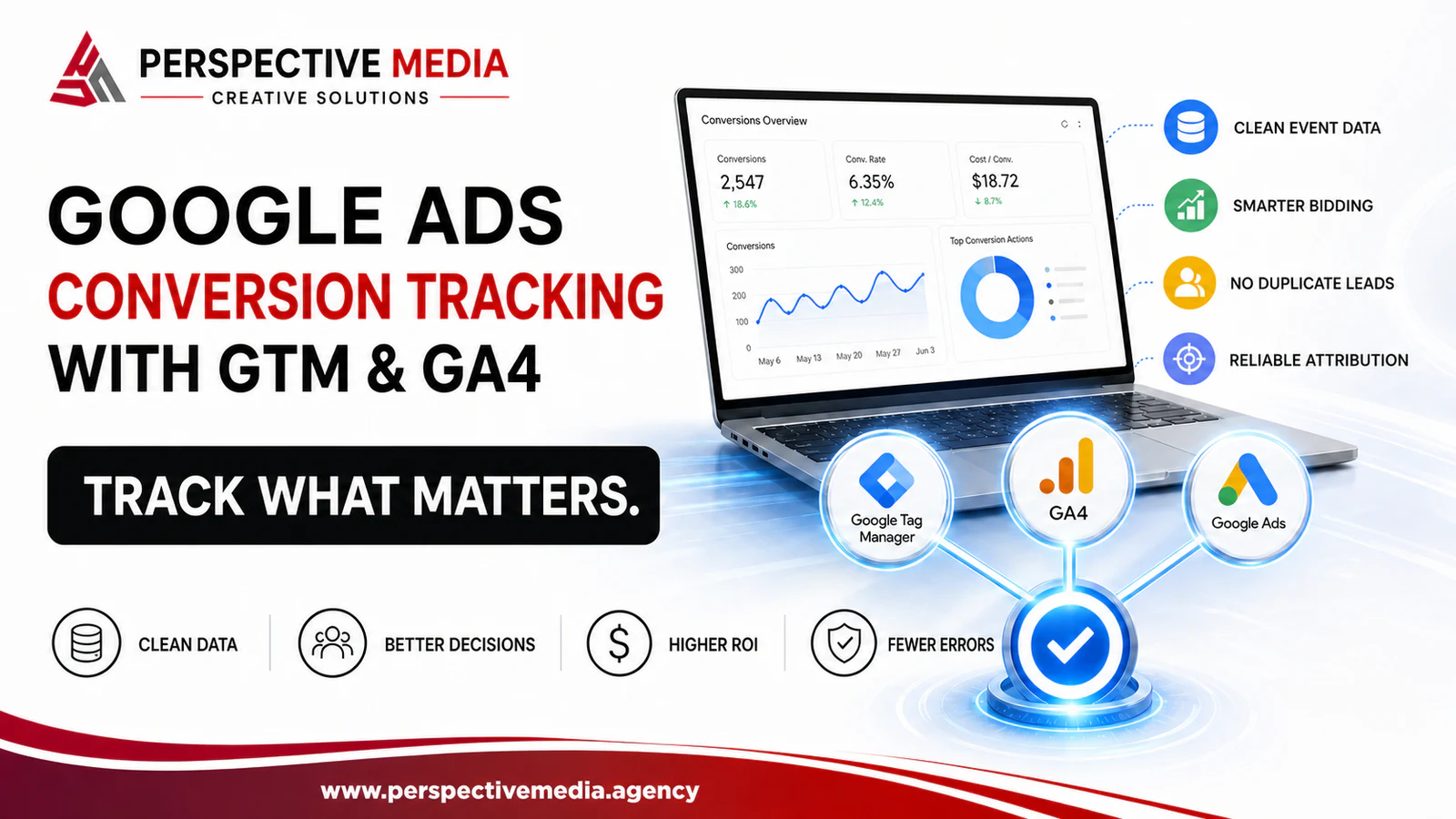
A reliable setup gives Google Ads a clear signal: this visitor completed an action that matters to the business. Google Tag Manager handles when the tracking fires, Google Analytics 4 records how users behave across the website, and Google Ads uses selected conversions for reporting and bidding.
This guide explains how those pieces should work together without turning your measurement setup into a collection of disconnected tags.
What GTM, GA4, and Google Ads each do
The three platforms are related, but they are not interchangeable.
Google Tag Manager (GTM) is the implementation layer. It loads tags and decides when they should fire. For example, GTM can send an event after a successful form submission, on a confirmed booking page, or when someone clicks a WhatsApp link.
Google Analytics 4 (GA4) records the broader customer journey. It helps you understand where visitors came from, which pages they viewed and which events they completed. Important events can be marked as key events.
Google Ads measures actions attributed to Google advertising and can use selected conversion actions to guide automated bidding.
Think of it this way: GTM detects the action, GA4 explains the journey and Google Ads decides whether that action should influence campaign optimization.
If you need help designing the full measurement and campaign structure, our search engine marketing service covers Google Ads, GA4, Google Tag Manager and ongoing performance analysis.
Start with the business action, not the tag
Before opening Tag Manager, write down which actions actually have commercial value.
For a lead-generation website, that list might look like this:
| User action | Business meaning | Suggested role |
|---|---|---|
| Qualified enquiry submitted | A genuine sales opportunity | Primary conversion |
| Call connected for a useful duration | A prospect spoke with the team | Primary conversion |
| WhatsApp conversation started | A prospect initiated contact | Secondary until quality is verified |
| Pricing or service page viewed | Shows interest, but not a lead | Observation event |
| Form button clicked | Shows intent, but not completion | Diagnostic event |
The distinction matters. If a button click and a completed form are both primary conversions, Google may report two conversions for one enquiry. Worse, a visitor can click the button, encounter an error and still be counted as a lead.
For ecommerce, the main action is normally a completed purchase. Add-to-cart and begin-checkout events are useful for analysis, but they should not automatically carry the same bidding weight as revenue.
The best conversion plan is usually short. A business with ten primary website conversions probably has a measurement problem, not ten equally important outcomes.
Choose how the conversion reaches Google Ads
There are two common routes.
Option 1: Send the conversion directly to Google Ads
GTM fires a Google Ads conversion tag using the conversion ID and conversion label from the Google Ads account.
This route is useful when the main priority is Google Ads bidding and you want a dedicated advertising conversion signal. It also supports values, currencies and transaction IDs.
Option 2: Record the event in GA4 and import it into Google Ads
GTM sends an event to GA4. The event is marked as a key event, and that key event is then created or imported as a Google Ads conversion.
This approach keeps GA4 as the central measurement layer and is convenient when the same action needs to be analysed across organic search, paid social, email, direct traffic and Google Ads.
Google’s current documentation confirms that GA4 events must be marked as key events before they can be used as conversions in Google Ads. The Google Ads and GA4 accounts must also be linked, and auto-tagging should be enabled. See Google’s guide to creating conversions from Analytics events.
Both routes can work. The mistake is sending the same successful action through both routes and setting both conversion actions as primary. That creates duplicate bidding signals.
If you need both for comparison, choose one as the primary action used in the Conversions column and bidding. Keep the second as a secondary observation action.
A clean GTM and GA4 setup, step by step
1. Install the base Google tag correctly
Your Google tag or GA4 configuration should load across the website, not only on the conversion page. In GTM, confirm that it fires on all relevant pages and uses the correct measurement ID.
Do not install the same Google tag through the website code, a WordPress plugin and GTM at the same time. Duplicate base tags are a common cause of inflated page views and confusing event behaviour.
Use GTM Preview mode and Google Tag Assistant to confirm what is loading before publishing the container.
2. Create an event for the completed action
The trigger must represent success, not an attempt.
For a standard lead form, the preferred options are:
- A dedicated thank-you page shown only after the server accepts the inquiry.
- A data layer event pushed after the form returns a confirmed success response.
- A custom event provided by the form or booking platform.
A simple button-click trigger should be the last choice. It cannot tell whether the form was valid, whether the request reached the server or whether an error appeared.
Use clear event names, such as:
generate_lead
book_consultation
purchase
whatsapp_click
Avoid names tied to a temporary design element, such as red_button_click. Event names should still make sense after the website is redesigned.
3. Send the event to GA4
Create a GA4 event tag in GTM and connect it to the successful-action trigger. Add useful parameters where available, such as:
form_name: project_enquiry
service_interest: search_engine_marketing
lead_source_location: contact_page
value: 100
currency: GBP
Do not send personal information such as names, email addresses, or phone numbers into GA4 event parameters. Measurement data should describe the interaction, not identify the person.
After publishing or testing the event, check GA4 DebugView and the Realtime report. Once the event appears correctly, mark it as a key event if it represents an important business outcome.
4. Create the Google Ads conversion action
If you are using direct Google Ads tracking, create a website conversion action in Google Ads and select the appropriate category, such as Submit lead form, Book appointment or Purchase.
Review these settings carefully:
- Value: Use dynamic revenue for e-commerce. For leads, use a realistic estimated value only if it helps decision-making.
- Count: “One” is normally appropriate for leads. “Every” is usually appropriate for purchases.
- Click-through conversion window: Match it to the length of the buying cycle.
- Attribution: Use a setting supported by the account’s available data and reporting needs.
- Action optimization: Decide whether the conversion is primary for bidding or secondary for observation.
Google provides the conversion ID and label required by the GTM Google Ads Conversion Tracking tag. Its manual setup documentation also explains how to create and verify a website conversion action: Set up conversions manually.
If you are importing from GA4, link the correct accounts first. Select only the key events that should appear in Google Ads, then review whether the new action is primary or secondary before using it in a campaign goal.
5. Check conversion linking
When someone clicks a Google ad, click information is passed through the landing-page URL. Conversion linking helps store that information so the later conversion can be attributed to the ad click.
Modern Google Ads tags in GTM may load the Google tag needed for conversion linking automatically. Older or more customized containers may still use a separate Conversion Linker tag. Do not add tags blindly; inspect the existing container first.
If a separate Conversion Linker is required, Google generally recommends firing it across pages where ad visitors may land. Cross-domain journeys need additional attention because redirects, payment gateways or booking domains can strip or break attribution. Google’s Conversion Linker documentation covers the current behaviour and cross-domain options.
6. Pass a transaction ID where repeat firing is possible
Purchase and booking conversions should include a unique transaction ID. This helps Google Ads identify duplicate conversions when the confirmation page is reloaded or revisited.
For lead forms, the better solution is to fire the event from the confirmed submission response. If a thank-you page is used, make sure it cannot generate repeated conversions without a new successful submission.
Test before trusting the numbers
A tag appearing in GTM Preview does not prove the complete setup works.
Run a full test journey:
- Open Tag Assistant and connect it to the website.
- Arrive on the actual landing page.
- Complete the form, booking or purchase.
- Confirm the expected GTM trigger fired once.
- Confirm the GA4 event appears in DebugView.
- Check that the event parameters contain the expected values.
- Confirm the Google Ads conversion tag received the correct ID and label.
- Repeat the test with an invalid form submission and confirm no conversion fires.
- Reload the thank-you page and check for duplicate firing.
- Test on mobile as well as desktop.
Google Ads may take time to update a new conversion action’s status. “Unverified” does not always mean the implementation is broken, especially before the first successful event is processed. Google recommends using Tag Assistant and reviewing the conversion status when troubleshooting. See Google Ads conversion measurement.
Do not forget consent
Tracking must respect the visitor’s consent choices and the privacy requirements that apply to the business and its audience.
Consent Mode communicates consent states to supported Google tags. A consent management platform or a correctly configured custom banner should set the default state and update it after the visitor makes a choice. Google distinguishes between basic and advanced Consent Mode, and the right implementation depends on the business’s legal and measurement requirements.
Do not treat Consent Mode as a substitute for legal advice or a valid consent process. Google’s Consent Mode overview explains how supported tags respond to consent choices.
Common conversion tracking mistakes
Counting clicks instead of outcomes
A form button click is not a submitted lead. A phone-number click is not necessarily a connected call. A checkout start is not a purchase.
Track these interactions for analysis if they are useful, but keep the primary conversion focused on the completed outcome.
Importing and tagging the same conversion twice
If generate_lead is imported from GA4 and a direct Google Ads tag also fires for the same form, both actions may appear in the account. Make sure only one is used as the primary bidding signal unless there is a deliberate reason to count them separately.
Treating every lead as equally valuable
Ten spam enquiries are not better than three qualified opportunities. Website tracking is the starting point. Mature accounts should eventually connect lead quality or offline sales outcomes back to advertising where the CRM and consent setup allow it.
Losing the GCLID during redirects
Redirect chains, cross-domain forms and poorly configured booking tools can remove advertising click information. Test the full journey from landing page to confirmation, not just the final page.
Publishing without a naming system
Names such as Tag 1, New conversion and Form trigger final become unmanageable quickly.
A basic convention is easier to maintain:
GA4 – Event – Generate Lead
Google Ads – Conversion – Project Enquiry
Trigger – Custom Event – Form Success
Variable – Data Layer – Service Interest
Ignoring website behaviour
Tracking cannot repair a form that fails silently, a thank-you page that loads before the enquiry is stored or a React form that never pushes a success event.
Measurement and development often need to be reviewed together. Our web development service includes analytics-ready implementation for websites and conversion journeys.
What a healthy lead-generation setup looks like
For many service businesses, a practical structure is:
- Primary: Confirmed project enquiry
- Primary or secondary: Qualified phone call
- Secondary: WhatsApp click
- Secondary: Consultation booking
- Observation only: Service-page engagement, scroll depth and form starts
The exact setup depends on the sales process. If WhatsApp produces most of the real opportunities, it may deserve greater importance. If half the clicks are accidental or low quality, it should remain secondary until conversations can be qualified.
The goal is not to collect the maximum number of events. It is to give the advertising account a small number of signals that reflect real progress toward revenue.
Final conversion tracking checklist
Before using conversion data for campaign decisions, confirm that:
- The Google tag loads once on every required page.
- The Google Ads and GA4 accounts are linked correctly.
- Auto-tagging is enabled.
- Primary and secondary actions are clearly separated.
- The event fires after confirmed success, not on a button click.
- Direct and imported conversions are not being counted twice.
- Lead actions use the correct count setting.
- Purchase values, currencies and transaction IDs are passed correctly.
- Consent choices control tag behaviour appropriately.
- Mobile, desktop, invalid submissions and repeat page loads have been tested.
- Someone reviews conversion quality after campaigns begin generating leads.
Reliable conversion tracking isn’t the most visible part of a Google Ads campaign, but it affects almost every optimization decision that follows. Build it around real business outcomes, document the setup and test it whenever the website or form changes.
If your Google Ads account is optimizing toward unclear or inconsistent data, discuss your measurement setup with Perspective Media. We can review the conversion actions, GTM container, GA4 events and campaign goals before recommending changes.