
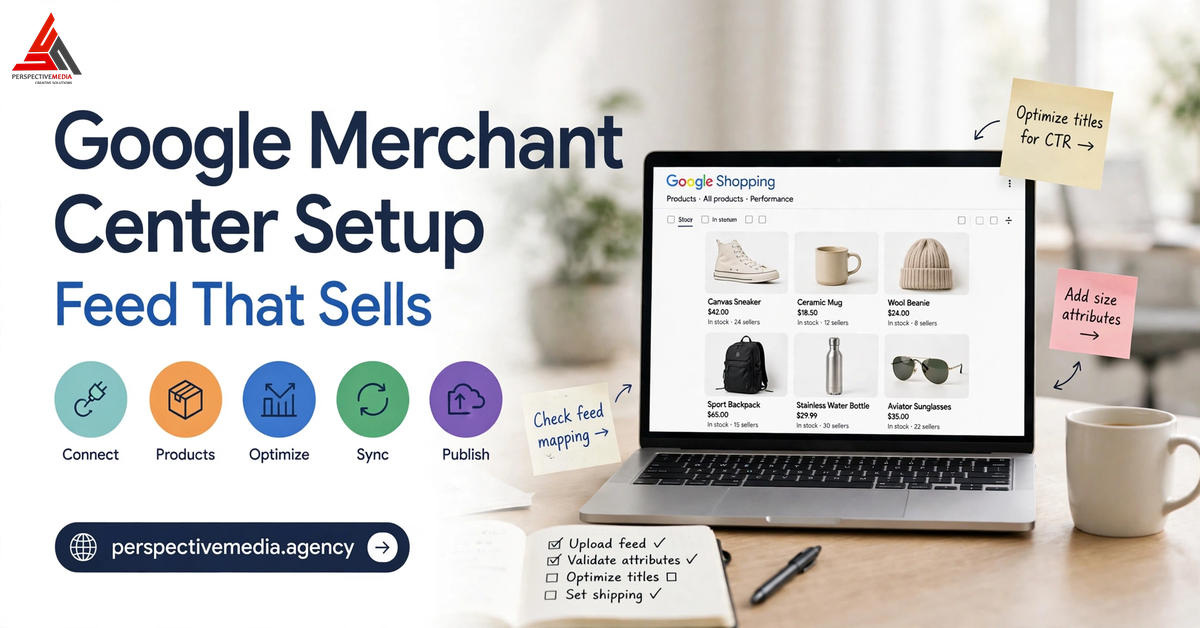
A Google Merchant Center setup is where most Shopping campaigns are won or lost before any ad spend is committed. Google does not rank your products on clever ad copy. It ranks them on the quality, accuracy, and completeness of the product data you feed it. Get the feed right and your products become eligible for Shopping ads, free listings, and Performance Max placements. Get it wrong and the same products sit disapproved, limited, or invisible — while competitors with cleaner data take the clicks.
This guide covers a Google Merchant Center setup that sells: account foundations, required attributes, variant and image rules, the disapprovals that actually happen, and the Shopping structure that sits on top of the feed. It is written for store owners and marketing leads, and it is specific enough to hand to whoever builds your feed.
Google Merchant Center Setup Starts Before the Feed
A Google Merchant Center setup begins in Merchant Center, Google’s home for your product catalogue. It holds your products, business information, and shipping and tax settings, and it is the account you link to Google Ads before Shopping or Performance Max campaigns can run. A feed is simply the file — XML, TSV, or TXT — that carries your products into that account, one row per product or variant.
Before building the feed, a Google Merchant Center setup needs three foundations in place. First, verify and claim your website domain in Merchant Center, so Google knows the product links in your feed belong to you. Second, complete your business information, and make sure the contact details, return policy, and shipping information on your website match what Merchant Center holds. Third, link Merchant Center to Google Ads. None of this is glamorous, and all of it is where accounts get stuck: mismatched business details and missing policy pages are among the most common reasons new accounts are flagged before products are even reviewed.
For a Google Merchant Center setup, the other foundation is conversion tracking. Shopping traffic that cannot be measured cannot be optimised, so confirm purchases are recorded in Google Ads and tied to real revenue before scaling spend. Our search engine marketing service treats this as the starting point for every paid engagement.
Google Merchant Center Setup: The Required Attributes
In a Google Merchant Center setup, every product needs a core set of attributes, and missing one is enough to block that product from serving: `id`, `title`, `description`, `link`, `image_link`, `availability`, and `price`. Most physical products also need `brand` and a product identifier — a `gtin` where the manufacturer has assigned one, or an `mpn` where it has not. Google’s own product detail documentation shows how richer structured attributes help Google match products to searches across traditional and AI-driven surfaces.
Each attribute has rules worth respecting. The `id` must be stable and unique — use your SKU and never recycle it for a different product, or Google’s history for that product becomes meaningless. The `title` is capped at 150 characters, must match the product page, and must not carry promotional language such as “free shipping” or “best price”. The `description` is plain text up to 5,000 characters, describing only that product — no links, no sale announcements, no competitor mentions.
The `link` must be the exact product page on your verified domain, not a category page or a redirect chain. The `price` must be the price a shopper can actually pay, in the correct currency, and it must match the price on the landing page, in your structured data, and at checkout. A mismatch between any of those is one of the fastest routes to disapproval.
Availability deserves special care because it changes constantly. The accepted values are `in_stock`, `out_of_stock`, `preorder`, and `backorder`, and the value in the feed must match the page at the time Google checks it. A product showing as in stock in the feed but sold out on the site is not a minor inconsistency; to a shopper it is a broken promise, and Google treats it accordingly. If stock turns over quickly, schedule feed refreshes at least daily, and use the Content API or a real-time feed connection for high-volume stores rather than a manual spreadsheet upload.
Variants, Categories, and Images: Where Feeds Quietly Break
In a Google Merchant Center setup, variants are where tidy feeds become messy. Each variation — a shirt in a different size and colour, a phone case in a different model — is its own item, and all variants of one product share an `item_group_id`, usually the parent product’s ID. Each variant carries its own price, availability, image, and distinguishing attributes such as `color`, `size`, `gender`, and `age_group` for apparel. Send variants without a shared group ID and Google may treat them as unrelated products, or worse, as duplicates competing against each other.
In a Google Merchant Center setup, categories matter in two different ways, and confusing them is a common error. `google_product_category` is Google’s own taxonomy, the standard classification that helps Google place your product in the right searches. `product_type` is your own hierarchy, the category path from your store, which is useful for campaign organisation and reporting. Use both: Google’s taxonomy for eligibility and matching, your own for structure. A feed that leaves `google_product_category` blank, or maps everything to one broad category, is leaving relevance on the table.
Images follow the same pattern of small rules with large consequences. The main image must be clean — the product itself, with no promotional overlays, watermarks, text badges, or borders — and it must be crawlable by Google. Placeholder and generic images are not accepted. Google also sets a minimum image size of 500 by 500 pixels from January 31, 2027, with around 1,500 by 1,500 recommended, so if your catalogue still carries small thumbnails, upgrading images is a job to schedule now.
Additional images, added with `additional_image_link`, are worth using: shoppers compare products visually, and a listing with one flat image loses to a listing with angles, context, and detail.
The Disapprovals You Will Actually See
Most feed problems fall into a short list, and each has a straightforward fix. Price mismatch is first: the feed price, page price, and checkout price disagree, often because a sale price was updated on the site but not in the feed, or because tax handling differs by country. The fix is to make the feed the downstream output of your store data, not a separate spreadsheet someone edits by hand, so a price change in one place flows everywhere.
Missing or incorrect identifiers are second. A product with a manufacturer GTIN submitted without one may get limited visibility; a product submitted with a wrong GTIN gets disapproved. Only submit GTINs from the manufacturer or the product packaging, and use `identifier_exists` set to `no` only for genuinely custom or handmade products with no GTIN and no manufacturer part number. Inventing identifiers is worse than omitting them.
Landing-page problems are third: product links that 404, redirect unexpectedly, or load so slowly that Google cannot verify them. Before submitting a feed, crawl your own product URLs and fix the broken ones. Finally, promotional language in titles and descriptions, and images with text overlays, trigger policy flags that are easy to avoid once you know the rule: the feed describes the product, it does not sell it.
When products are disapproved in a Google Merchant Center setup, fix the data at its source — in your store or feed tool — rather than patching the feed file, or the same error returns on the next refresh. Only request a review once every flagged issue is fixed.
From Feed to Campaign: Shopping Structure That Sells
A Google Merchant Center setup with a clean feed earns eligibility, not sales. The campaign structure decides what that eligibility is worth. The simplest structure that works for most stores separates campaigns by intent and margin: one campaign for best sellers and high-margin products, with its own protected budget, and a second for the long tail, with a tighter return target, so low-margin items do not consume the budget. Performance Max can then take the full catalogue, but only once conversion data exists for it to learn from — launching it on day one with no history is how budgets get spent on the easiest clicks rather than the best customers.
Custom labels make this structure manageable: `custom_label_0` through `custom_label_4` can tag products by margin band, seasonality, or clearance status, so budget follows business logic instead of alphabetical order.
Search-term discipline applies to Shopping just as it does to Search: Google matches products to queries based on feed data, so titles and descriptions are effectively your targeting. Titles should lead with the words shoppers actually search — brand, product type, and distinguishing features. Review the search terms report, add irrelevant queries as negatives, and feed what you learn back into titles, as we covered in our guide to what a good Google Ads agency actually does.
Google Merchant Center Setup: A Launch Checklist
Use this Google Merchant Center setup checklist as the pre-launch pass for a new feed, and as a quarterly audit for an existing one: domain verified and claimed, business information complete, Merchant Center linked to Google Ads; every product carries the required attributes; feed, page, structured data, and checkout prices agree, and availability matches the page.
Images are clean, crawlable, and at least 500 by 500 pixels; variants share an `item_group_id`; `google_product_category` is set; the feed rebuilds daily at minimum; diagnostics show no unresolved errors; and best sellers have protected budgets. The detailed Google product feed specification is a useful reference beside this checklist.
Google Merchant Center Setup: The Bottom Line
Google Merchant Center setup is not a one-time upload; it is the data foundation your Shopping performance stands on. Verify the domain, complete the business details, and build the feed from your store data so price and stock stay true. Respect the required attributes, group variants properly, use clean images at the right size, and fix disapprovals at their source.
Then structure campaigns around margin and intent, and let search-term data teach you what your titles should say. If that foundation is in place, Shopping stops being a source of mysterious disapprovals and starts being what it should be: the channel where shoppers who already know what they want find your product, at the right price, in stock, and ready to buy.