If you run a plumbing, electrical, cleaning, or landscaping business from home, your Google Business Profile poses an awkward question: must you publish your home address to show up on Google Maps? The answer is no. A service area business Google Profile lets you hide your address entirely and show the areas you serve instead — and set up correctly, it costs you nothing in visibility.
This guide covers how to set up a service area business Google Profile without showing your address, how to choose your service areas, and the mistakes that quietly cap rankings.
What a Service Area Business Google Profile Is
A service-area business (SAB) serves customers at their locations rather than at its own premises. Plumbers, electricians, HVAC technicians, mobile detailers, and house cleaners are classic examples: the customer never visits you, you visit them.
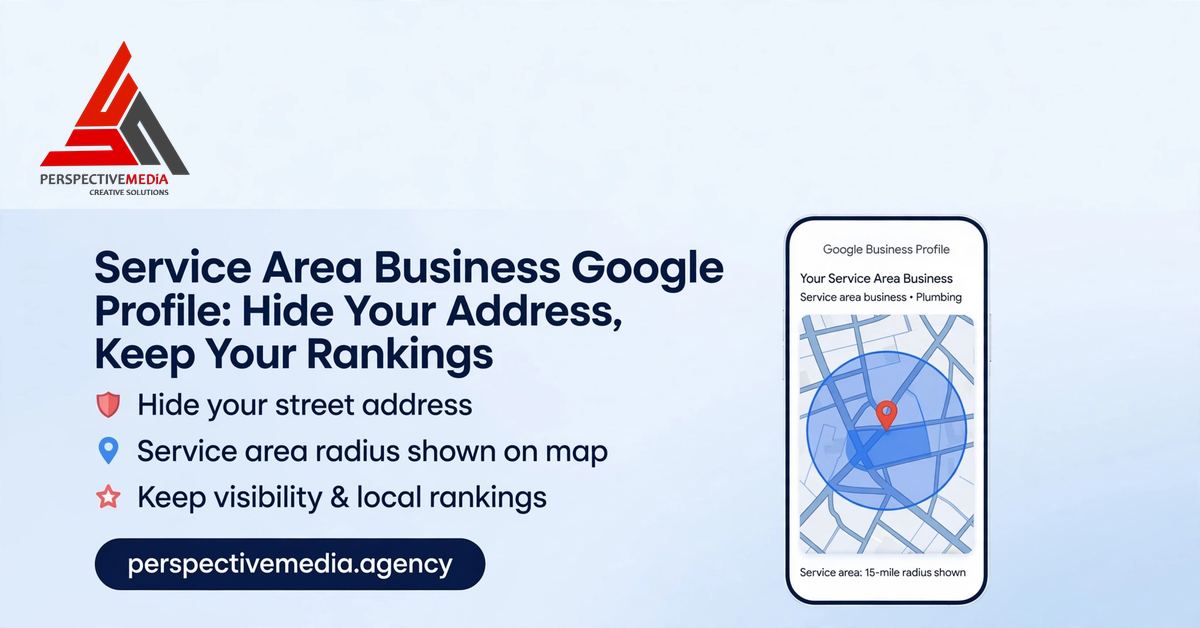
Google gives these businesses a specific profile type. Instead of a street address and a map pin at your door, an SAB profile shows the areas you serve — cities, neighbourhoods, or a radius around your base. Phone, hours, reviews, photos, and services all still appear, and customers can still call and message you. The only thing missing is the one detail you never wanted public: your home address.
This matters for more than privacy. Google’s business guidelines require businesses that don’t serve customers at their address to hide it — listing a home address as a customer-facing location is misrepresentation, and misrepresentation is one of the fastest routes to a suspended profile.
Why Hiding Your Address Is the Right Call
Three reasons make the service-area setup right for trades and mobile services.
First, privacy and safety. Your home address on a public listing invites walk-ins at dinner time, junk mail, and worse. You didn’t start a business to publish your home to the internet.
Second, accuracy. Customers searching for a plumber want to know one thing: will you come to them? A service-area listing answers that directly; a home address answers a question nobody asked.
Third, compliance. Google’s rules are explicit: if customers don’t come to you, your address stays hidden — and profiles set up this way avoid the suspensions that catch businesses listing a home address or virtual office as a storefront.
Service Area Business Google Profile Setup: Step by Step
Here is the exact setup sequence, whether you are creating a new profile or converting an existing one.
Step 1: Start in your Business Profile dashboard
Create or claim your profile. Enter your real business name — exactly as it appears on your signage and paperwork — and choose the category matching your main revenue line. Our GBP categories guide covers picking a primary category that won’t cap your visibility.
Step 2: Declare the business as a service-area business
During setup, Google asks whether you serve customers at your business address or at their locations. Choose the service-area option — “I deliver goods and services to my customers.” This setting makes the rest of the setup work.
Step 3: Hide your address
Choosing the service-area option gives you the address-visibility control — make sure the address is set to hidden. If you’re converting an existing profile, go to Edit profile → Location and turn off “Show business address to customers,” then verify the public view: the address should be gone from both Search and Maps.
Step 4: Set your service areas
Add the areas you genuinely serve: up to 20 named areas — cities, towns, districts, or postal areas — or a radius around your base. Be honest and specific: list the places your vans actually go, not the whole country. Claiming territory you never visit dilutes the areas you do serve.
Step 5: Complete the rest of the profile
Fill in everything else as for any profile: phone, hours, website, services with descriptions, business description, and photos of real work, your team, and your vans. A bare profile looks untrustworthy — and trust is the currency of local search. The full checklist in our 2026 GBP optimization guide applies here in full.
Step 6: Verify
Google may ask you to verify by postcard, phone, email, or video. Video verification is increasingly common for service-area businesses: you’ll typically show your vehicle, tools, or paperwork proving you operate where you claim. Verify promptly — an unverified profile won’t show in the map pack at all.
How to Choose Your Service Areas
Service areas deserve more thought than most businesses give them — they shape which local searches you can win.
Start from your real travel pattern. Pull your last three months of jobs and list where they actually happened — those locations are your core service area. If 90% of your work is within 25 miles of home, a 50-mile claim is fiction, and it gets found out when a customer 45 miles away calls and you decline the job.
Prefer named areas over a giant radius. A radius can include places you never serve and exclude nearby towns just outside the circle; named cities and districts describe your true coverage precisely and match how customers search (“plumber in [town]”).
Don’t overclaim to chase volume. Twenty service areas is a maximum, not a target. Five to ten honest areas you serve well will outperform a bloated list, because your reviews, photos, and content all reinforce the same geography.
Service Area Business Google Profile Mistakes to Avoid
The most common errors:
Showing an address and a service area at the same time
A profile displaying a street address and claiming a service area sends Google contradictory signals. Pick one model: for a true SAB, the address stays hidden.
Claiming areas you don’t serve
Listing a city where you have no jobs, no reviews mentioning it, and no content about it doesn’t win you searches there — it weakens the relevance of the places you do serve. How Google ranks local results confirms relevance to the search is a core ranking factor, and a fabricated service area contributes nothing to it.
Using a virtual office, coworking space, or PO box as your address
A mailing address presented as a physical location is misrepresentation — and one of the most common suspension triggers for service businesses. If you don’t serve customers at an address, hide it; don’t rent a fake one.
Keyword-stuffing the business name
“Best Emergency Plumber 24/7 London” is not a business name, and Google knows it. Use your real, legal name — keywords belong in your services and description, not bolted onto your name.
Setting it up once and forgetting it
SAB profiles need the same maintenance as any profile: fresh photos, review responses, and a quarterly check that the address is still hidden. Google occasionally applies automated edits — including re-showing an address — so check the public view after any “profile updated” notification.
What Changes When You Hide Your Address
The most common worry: hiding your address will hurt rankings. It won’t — set up as a genuine service-area business, Google ranks your profile on relevance, reviews, and service-area coverage, not on a public pin.
What changes is interaction: no “Directions” button to your front door, because the job happens at their address. Calls, messages, quote requests, and website clicks all work as before.
FAQs About Service Area Business Google Profiles
Can customers still find me on Google Maps without an address?
Yes. Your profile still appears in Maps results for searches in your service areas, and customers can call or message you from it — they just won’t see a pin on your house.
Do I need an office to have a Google Business Profile?
No. A service-area business Google Profile is designed for exactly this — businesses run from home, from a van, or from a workshop customers never visit.
Can I show my address later if I open a shop?
Yes. If you open premises customers genuinely visit, switch the profile to a storefront model and show the address — Google may ask you to re-verify.
What if Google keeps showing my address after I hide it?
Check the location settings first — the “show address” toggle is the usual culprit. If it’s off and the address still appears, it may come from a duplicate listing or a third-party data source; merge duplicates and correct the source.
The Bottom Line
A service area business Google Profile gives you both: full visibility in the searches that bring you work, with your home address kept private. Set it up honestly — real name, hidden address, service areas you actually cover — and check it quarterly.
If you’d like a professional to handle the whole profile, our local SEO team does this for service businesses every day — get in touch and we’ll take a look at yours.